> ## Documentation Index
> Fetch the complete documentation index at: https://dpos.xdr.ooo/llms.txt
> Use this file to discover all available pages before exploring further.
# 4. DP Offline Ubuntu Upgrade
> Follow the generated DP procedure from snapshot and pause through Ubuntu 24.04, DP 6.6.0 bringup, resume, and health validation.
# 4. DP Offline Ubuntu Upgrade
This is the production DP-side procedure. Do not start this page until the Mirror Server reports **Upgrade Readiness = PASS** and you have generated fresh **Menu 7 — DP Client Upgrade Commands**.
## Golden rule
**Do not copy release-specific upgrade commands from this documentation.** Use the Menu 7 output generated by the current Mirror Manager for the current Mirror Server IP and cluster configuration.
This page tells you **what to do, where to do it, and what result to wait for**.
## Full-mode sequence
For a DP starting on Ubuntu 16.04:
```text theme={null}
Snapshot / safety gate
→ Pause DP services
→ 16.04 → 18.04
→ 18.04 → 20.04
→ 20.04 → 22.04
→ 22.04 → 24.04
→ Stage DP 6.6.0 Phase 2
→ DL bringup
→ DA bringup
→ Resume and final validation
```
If the DP is already on Ubuntu 24.04 and you selected **Phase 2 Only**, skip the OS-hop sections and follow the Phase 2 commands generated by Menu 7.
## Step 1 — Create the required hypervisor snapshot
Before destructive work, create the approved full snapshot/backup for **every target DP VM**.
VMware example:
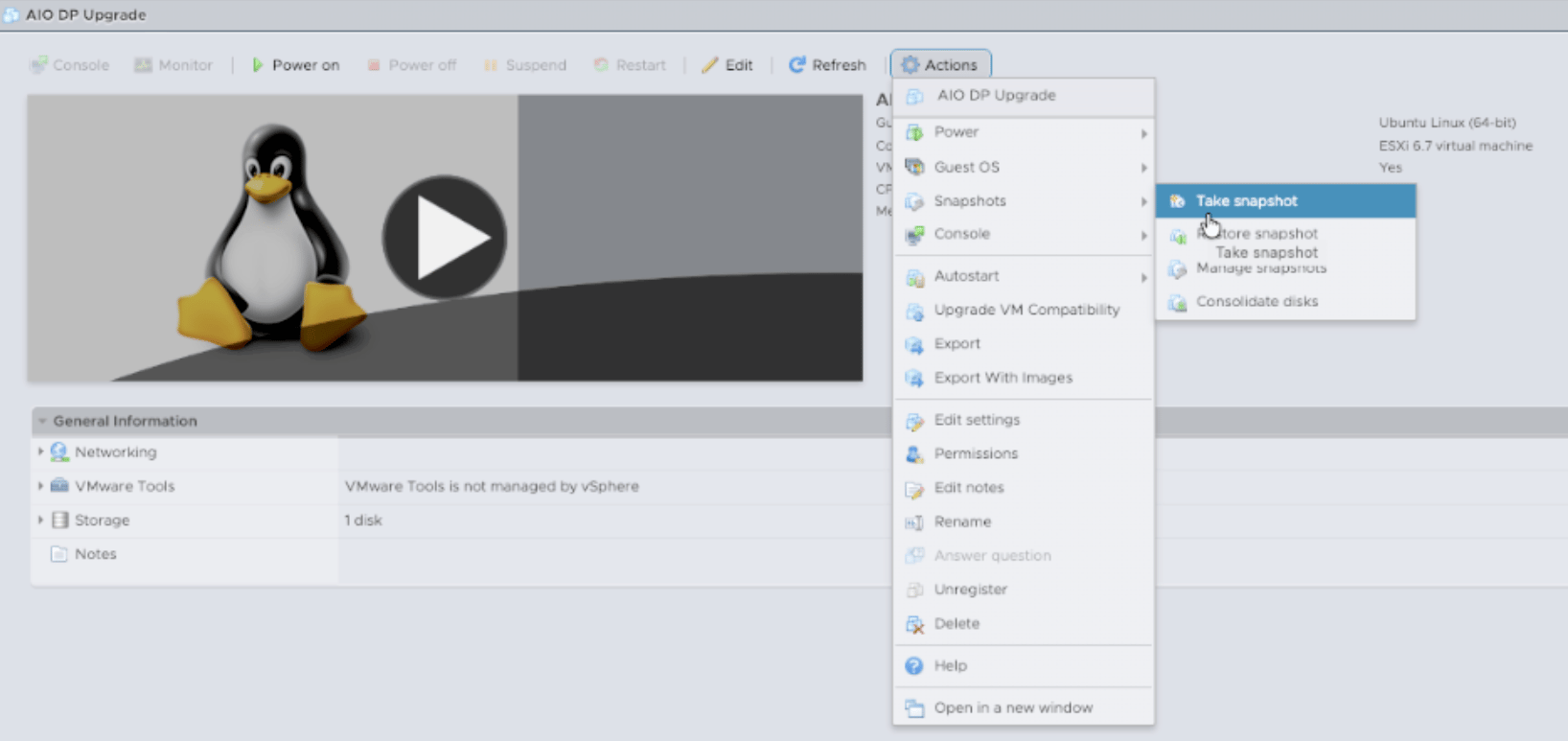 Give the snapshot a name that clearly identifies the pre-upgrade state.
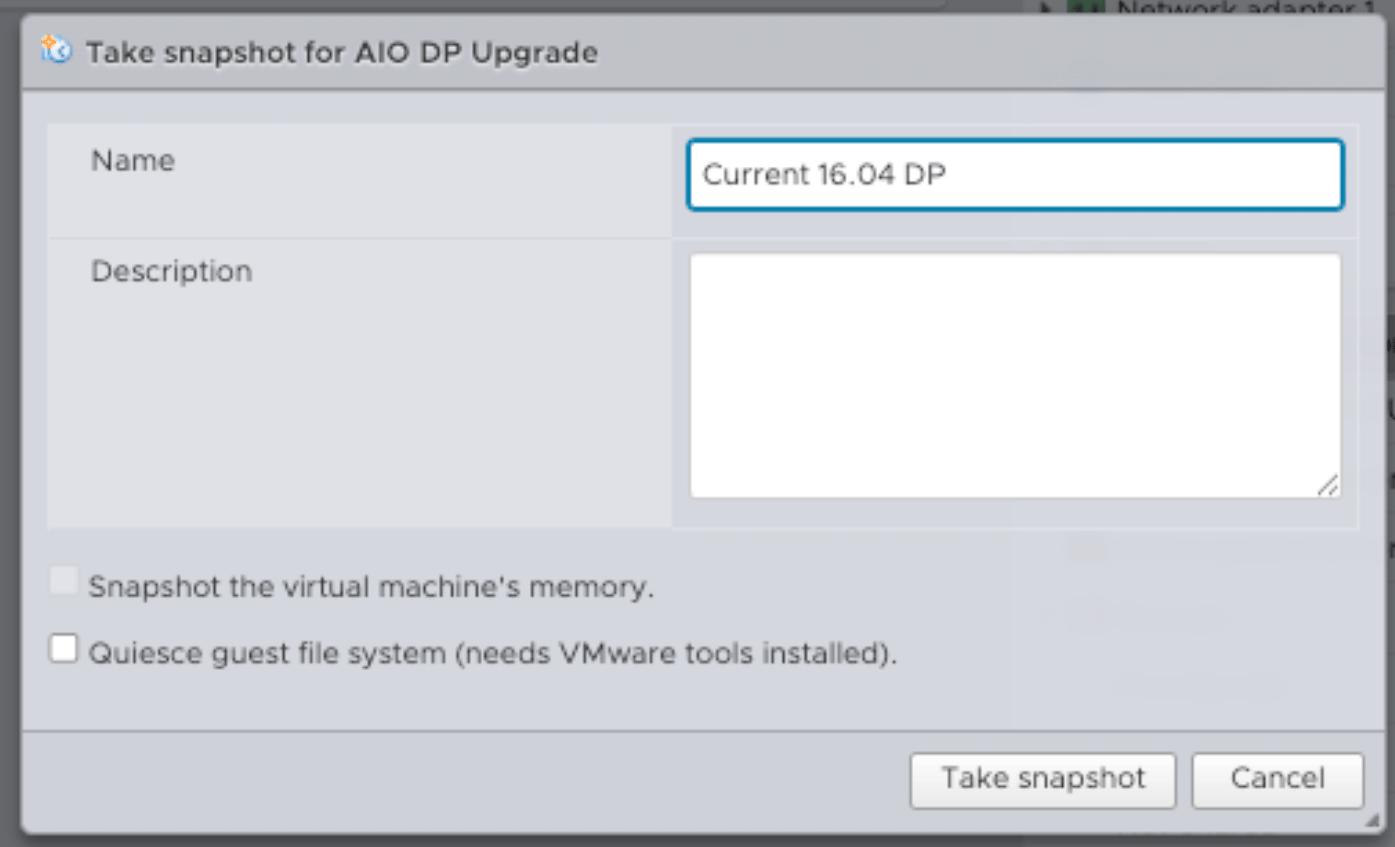 Confirm the snapshot exists before continuing.
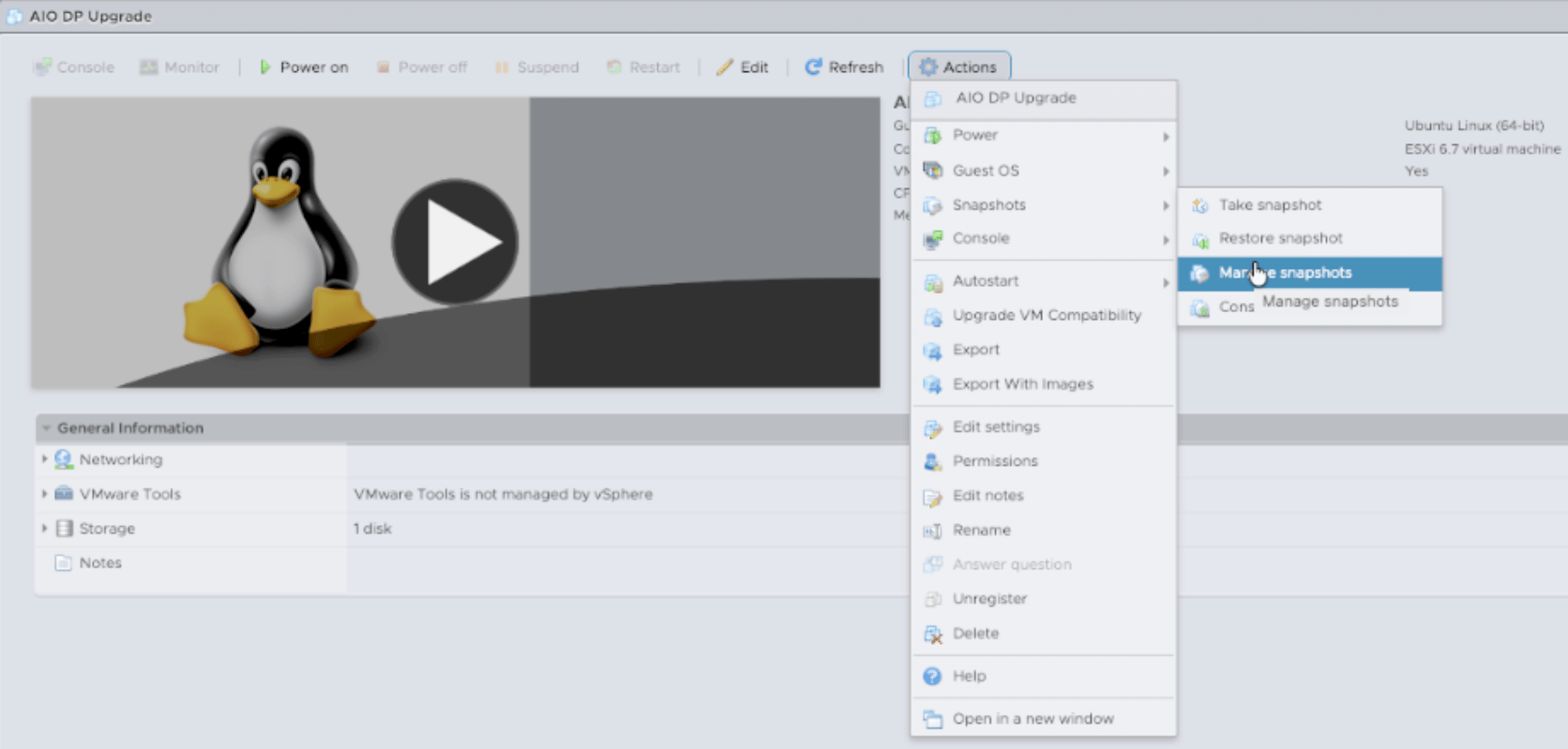 The project does not provide a supported OS or DP-runtime downgrade command. If a destructive failure cannot be recovered safely in place, the approved snapshot is the recovery path.
## Step 2 — Pause DP services from the DP CLI
On the Ubuntu 16.04 DP, enter `aella_cli` and pause the DP services. Do not type `pause` as a Linux shell command.
Example:
The project does not provide a supported OS or DP-runtime downgrade command. If a destructive failure cannot be recovered safely in place, the approved snapshot is the recovery path.
## Step 2 — Pause DP services from the DP CLI
On the Ubuntu 16.04 DP, enter `aella_cli` and pause the DP services. Do not type `pause` as a Linux shell command.
Example:
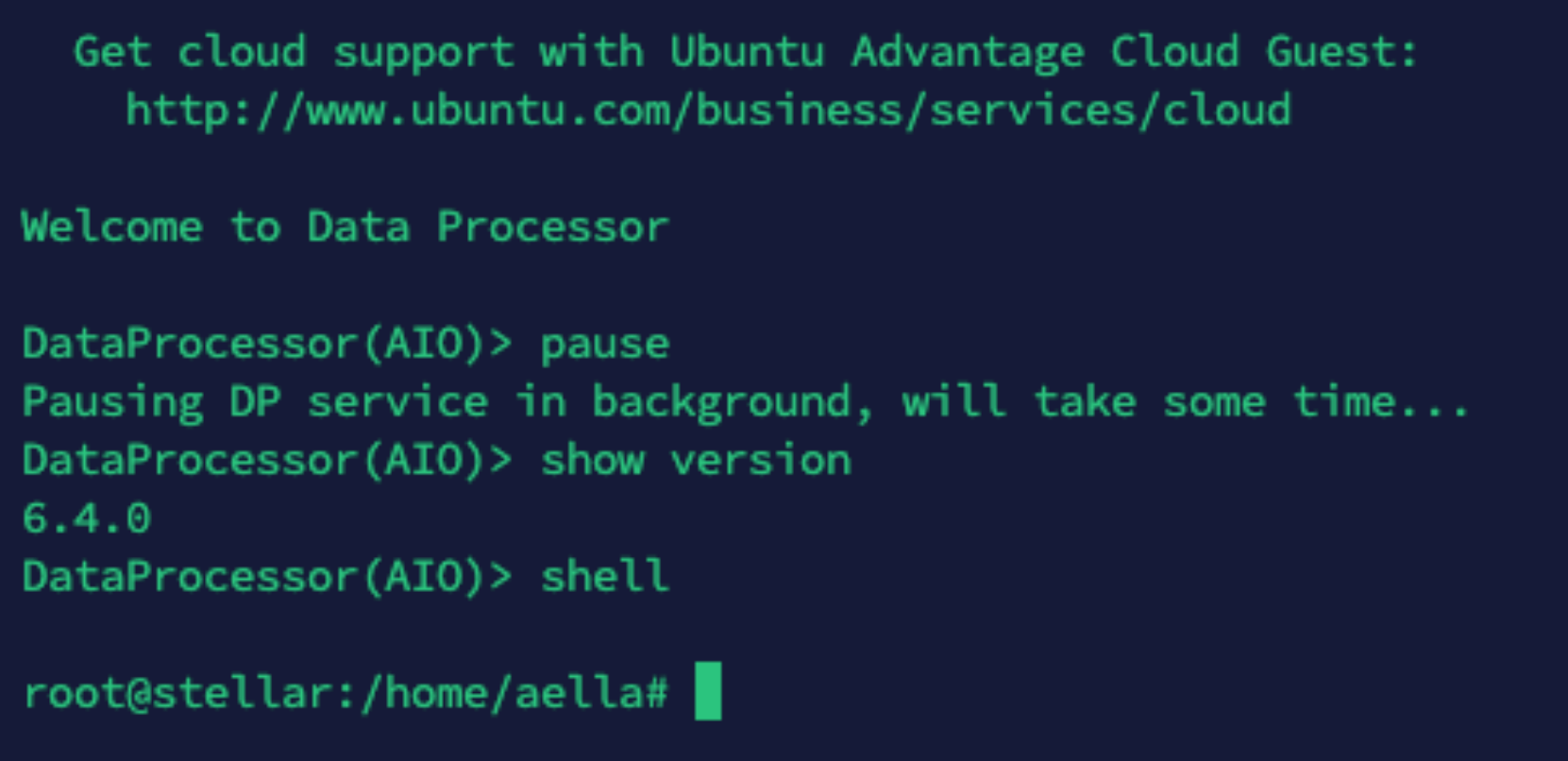 Wait for the pause operation to complete before starting the first OS hop.
## Step 3 — Upgrade Ubuntu 16.04 → 18.04
Use the **Step 2 / Xenial-to-Bionic command shown by Menu 7**. Copy the complete command block exactly as generated.
The client performs preflight and asks for an explicit destructive-upgrade confirmation. Read the execution plan and type the confirmation string exactly as shown by the current client.
After the upgrade and reboot, verify the OS release:
```bash theme={null}
lsb_release -a
```
A successful first hop should report Ubuntu 18.04.
Wait for the pause operation to complete before starting the first OS hop.
## Step 3 — Upgrade Ubuntu 16.04 → 18.04
Use the **Step 2 / Xenial-to-Bionic command shown by Menu 7**. Copy the complete command block exactly as generated.
The client performs preflight and asks for an explicit destructive-upgrade confirmation. Read the execution plan and type the confirmation string exactly as shown by the current client.
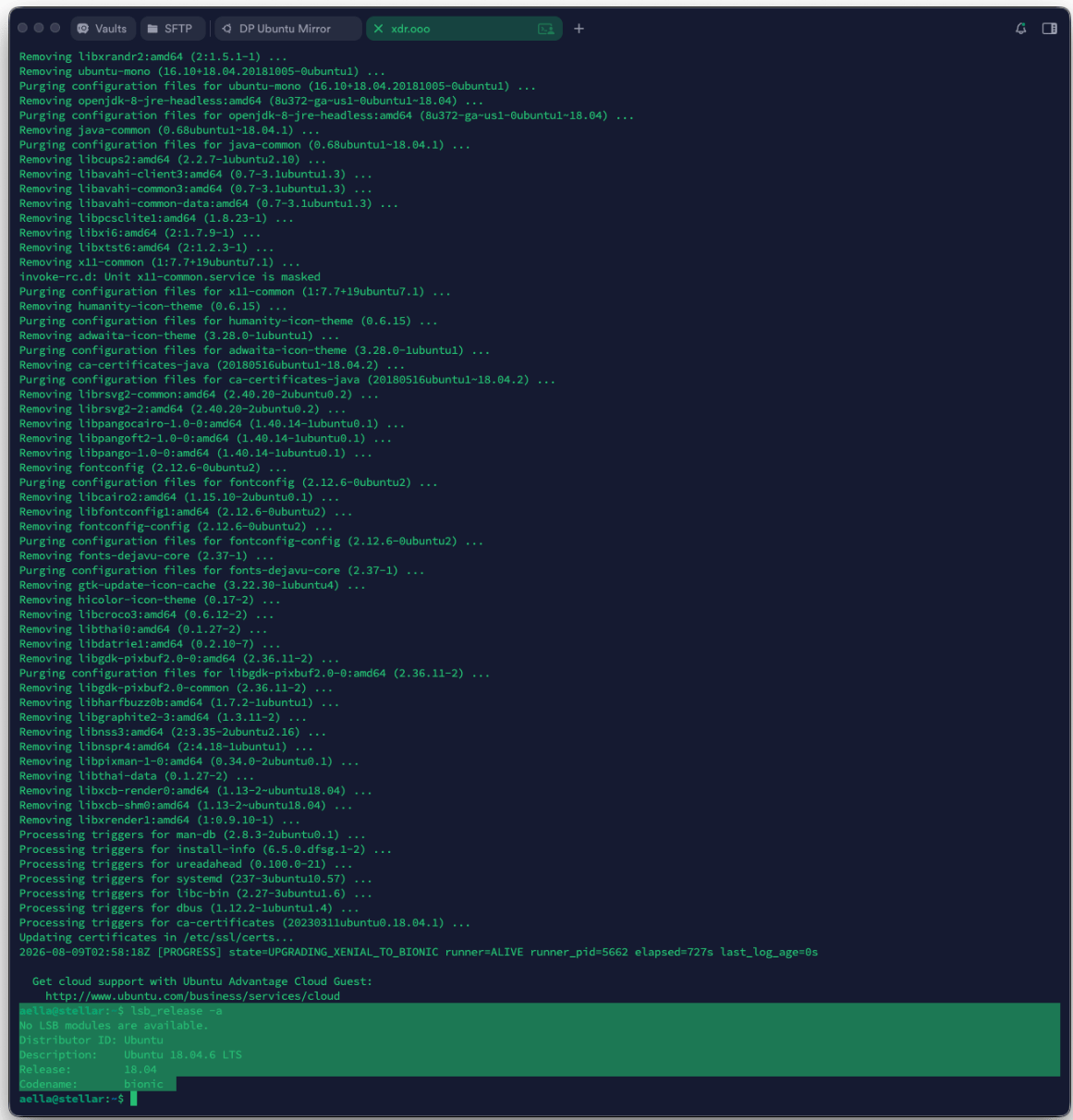
After the upgrade and reboot, verify the OS release:
```bash theme={null}
lsb_release -a
```
A successful first hop should report Ubuntu 18.04.
 ## Step 4 — Upgrade Ubuntu 18.04 → 20.04
Return to the current Menu 7 output and run only the **Bionic-to-Focal** command for this hop.
The upgrade client may print required next actions after the hop. Follow those instructions in the exact order shown.
## Step 4 — Upgrade Ubuntu 18.04 → 20.04
Return to the current Menu 7 output and run only the **Bionic-to-Focal** command for this hop.
The upgrade client may print required next actions after the hop. Follow those instructions in the exact order shown.
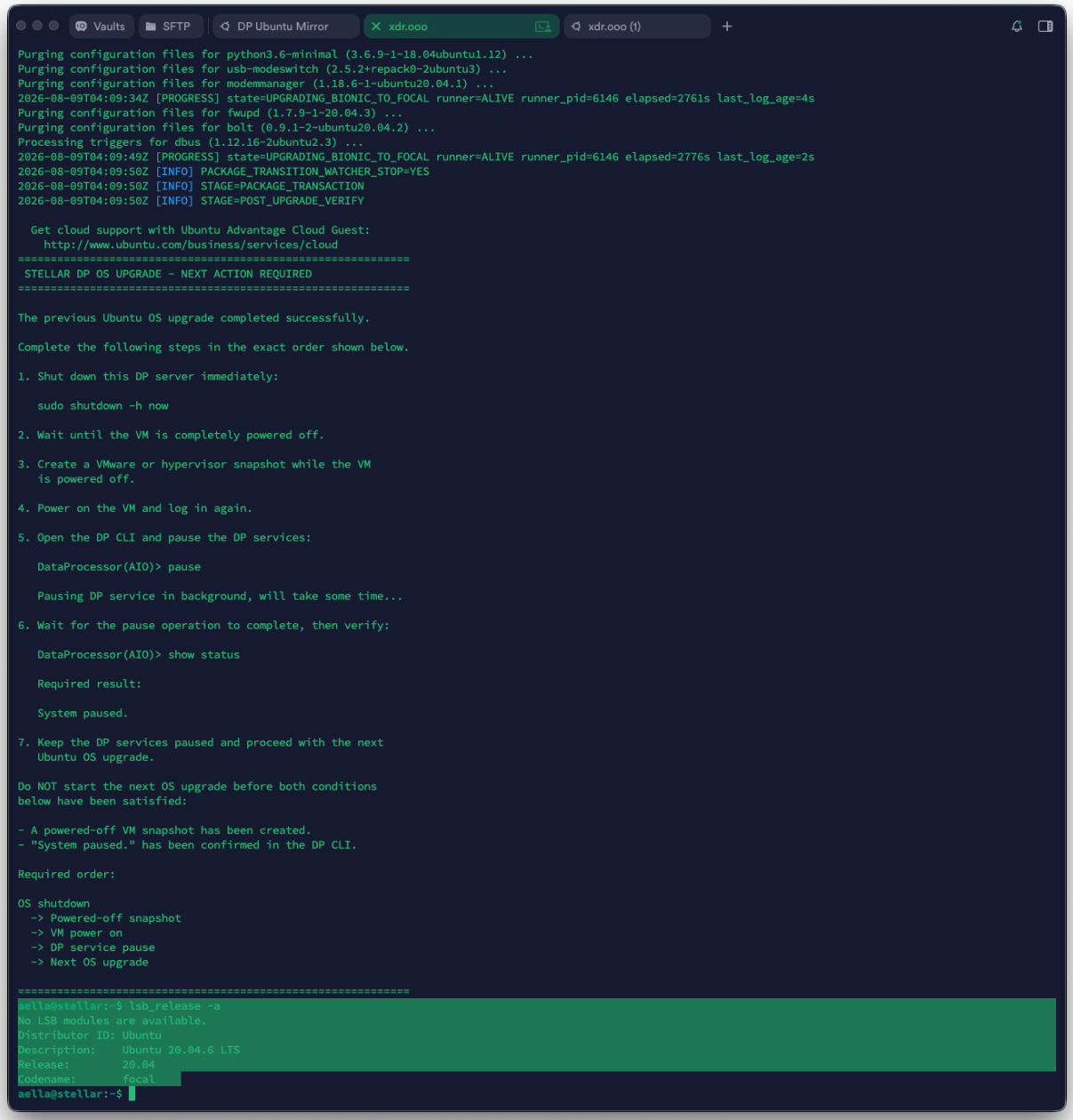
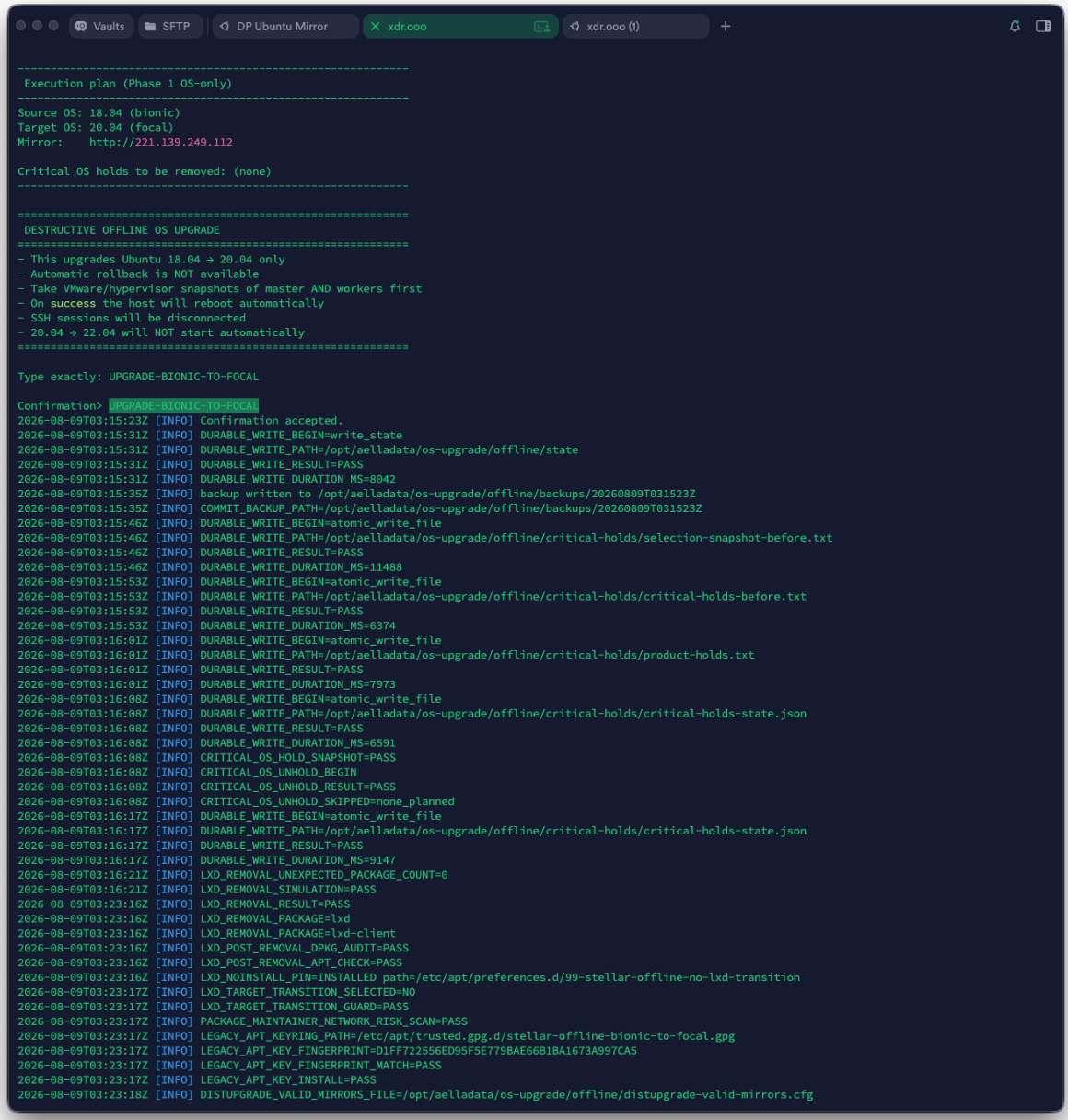 A current release may require a powered-off snapshot/checkpoint before the next OS hop. When the client prints such a gate, do not start the next hop until that gate is satisfied.
 ## Step 5 — Upgrade Ubuntu 20.04 → 22.04
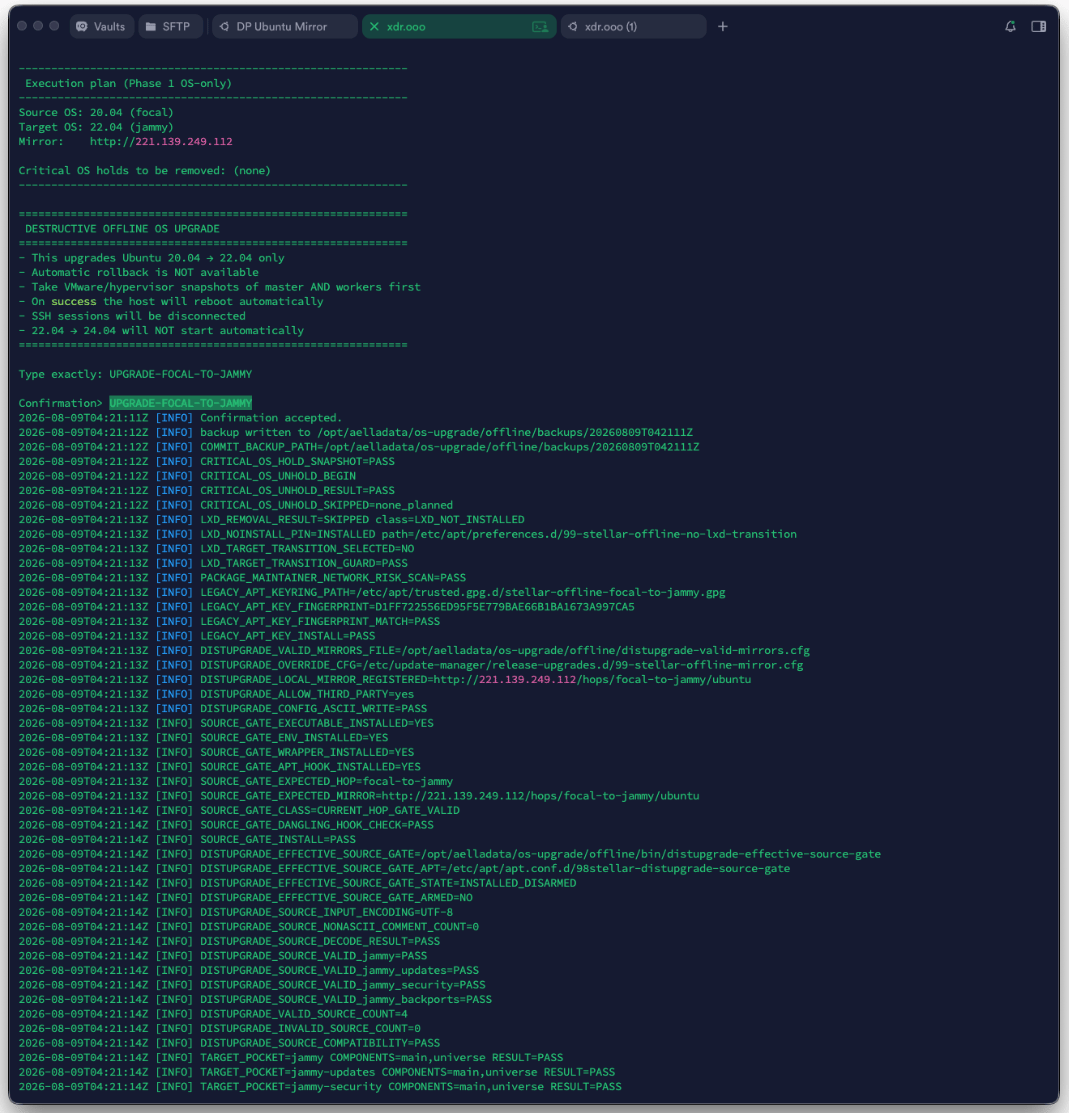
Run the **Focal-to-Jammy** command from the same fresh Menu 7 output.
## Step 5 — Upgrade Ubuntu 20.04 → 22.04
Run the **Focal-to-Jammy** command from the same fresh Menu 7 output.
 ### Important: Jammy is a transition state
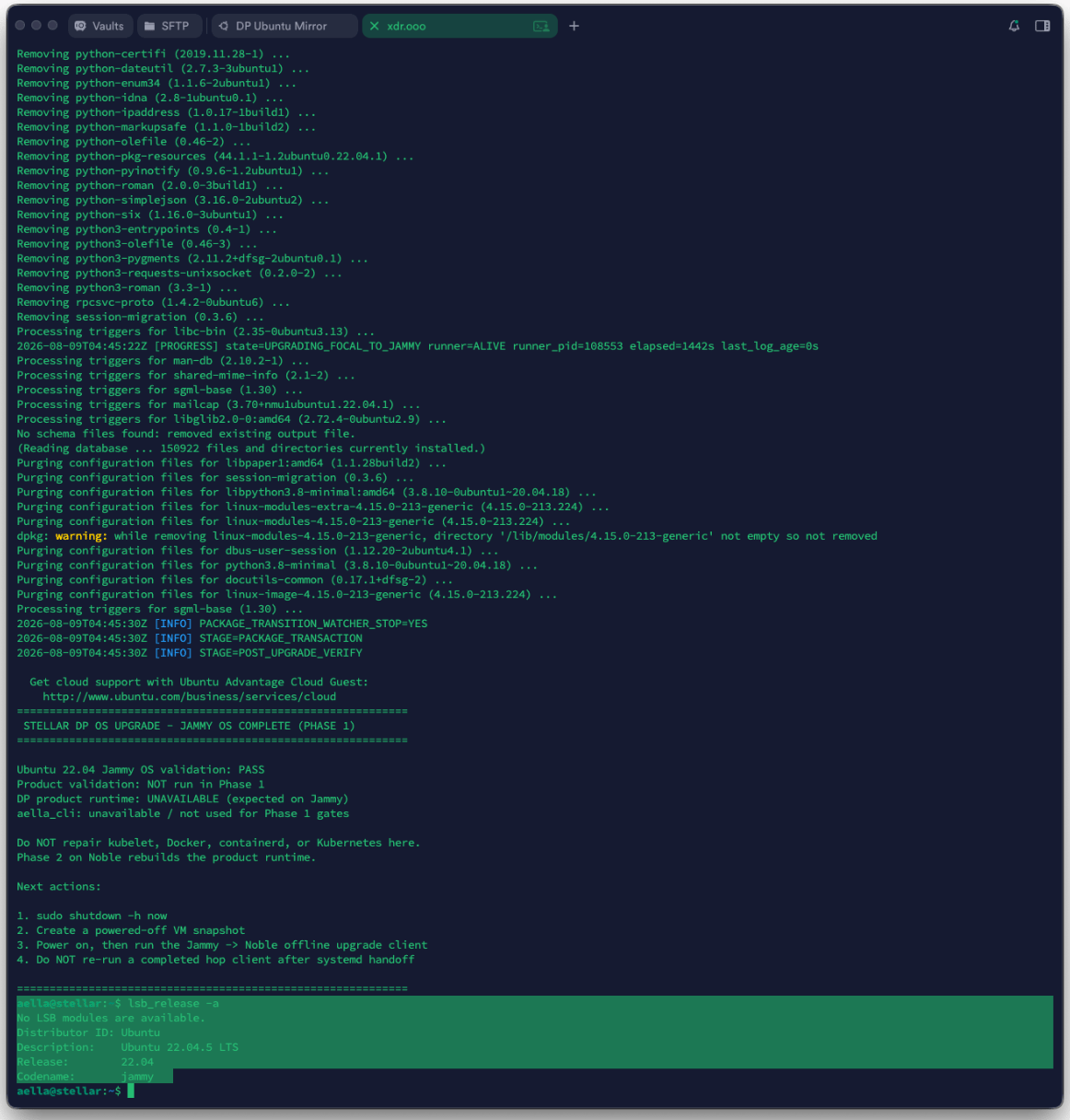
On affected DP builds, Ubuntu 22.04 can be intentionally transitional. The full DP product runtime, `aella_cli`, kubelet, Docker, or Kubernetes may not be healthy at this point.
**Do not repair the DP runtime just to make Jammy look healthy.** Continue the validated OS workflow to Ubuntu 24.04. Phase 2 rebuilds the product runtime.
The upgrade output can explicitly state that product validation was not run during Phase 1:
### Important: Jammy is a transition state
On affected DP builds, Ubuntu 22.04 can be intentionally transitional. The full DP product runtime, `aella_cli`, kubelet, Docker, or Kubernetes may not be healthy at this point.
**Do not repair the DP runtime just to make Jammy look healthy.** Continue the validated OS workflow to Ubuntu 24.04. Phase 2 rebuilds the product runtime.
The upgrade output can explicitly state that product validation was not run during Phase 1:
 ## Step 6 — Upgrade Ubuntu 22.04 → 24.04
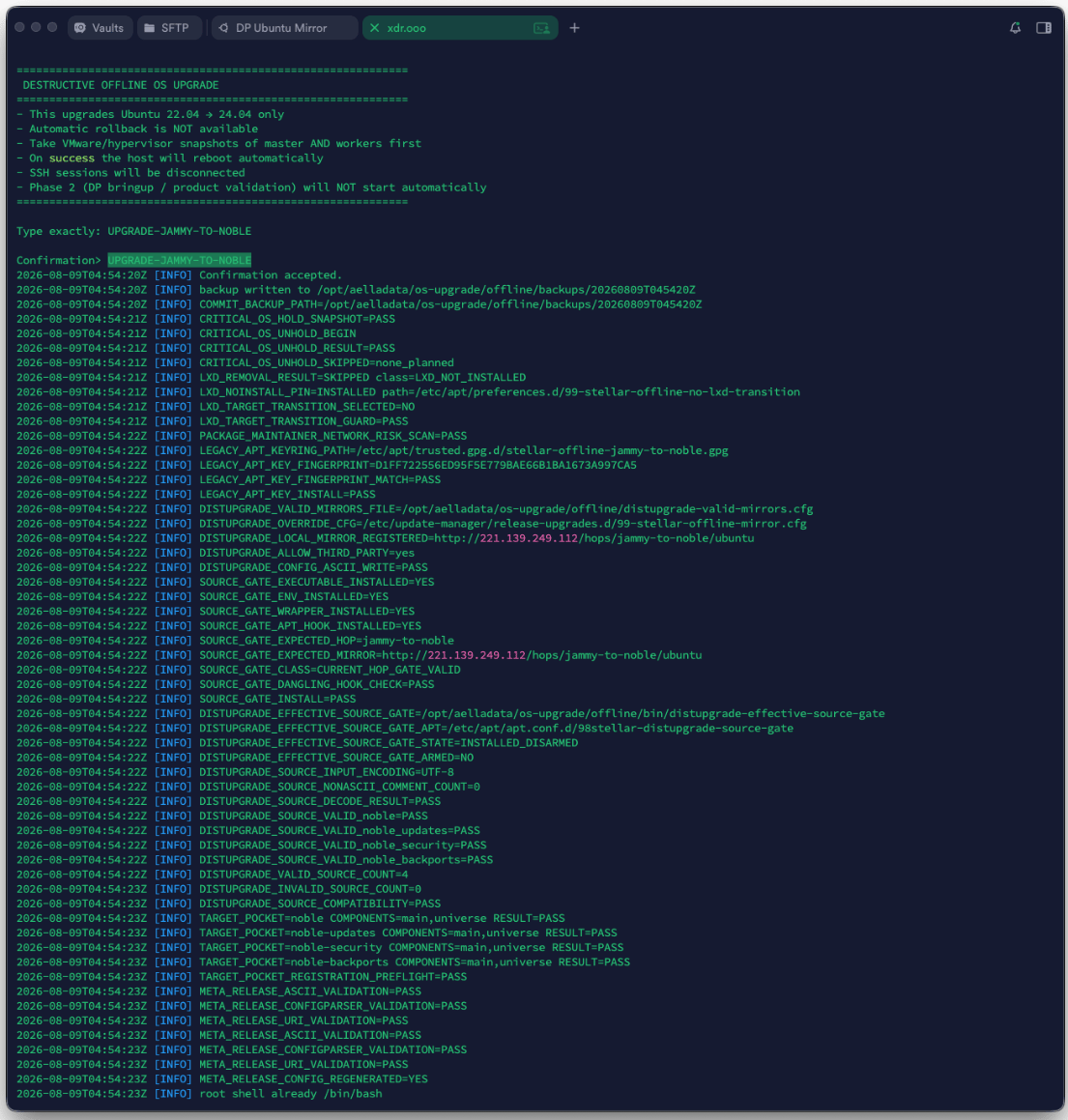
Run the **Jammy-to-Noble** command generated by Menu 7.
## Step 6 — Upgrade Ubuntu 22.04 → 24.04
Run the **Jammy-to-Noble** command generated by Menu 7.
 After reboot, verify:
```bash theme={null}
cat /etc/os-release
```
The node must report Ubuntu **24.04** before Phase 2 begins.
> Ubuntu 24.04 success means **Phase 1 is complete**. It does not mean the DP software bringup is complete.
## Step 7 — Stage DP 6.6.0 Phase 2 on every required node
Use the Phase 2 staging command block generated by the current Menu 7 output.
For clusters, complete the common staging/preflight work on:
```text theme={null}
DL master
DL worker(s)
DA master
DA worker(s)
```
Do not start final master orchestration while a required node is still incomplete.
Wait for the current staging/preflight output to indicate the node is ready for bringup.
> Several uploaded screenshots were captured during the older 6.5.0 development workflow. They are intentionally not used for this Phase 2 section. The active target documented here is **DP 6.6.0**.
## Step 8 — Bring up the DL cluster first
For a DL cluster with workers:
1. confirm common staging is complete on the DL master and every DL worker
2. run the final generated bringup/orchestration command on the **DL master only**
3. the master orchestrates its configured DL workers
4. wait for the bringup result and cluster readiness checks to complete
5. do not move to DA until the DL cluster is healthy
For AIO or master-only deployments, follow the generated single-node command instead.
## Step 9 — Bring up the DA cluster
Only after DL is healthy:
1. confirm common staging is complete on the DA master and every DA worker
2. run the final generated command on the **DA master only**
3. wait for all DA nodes and required services to become ready
Do not run the master-orchestration command directly on worker nodes.
## Step 10 — Resume DP services
After bringup completes successfully, follow the generated procedure to enter the DP CLI and resume services if the system is still paused.
Do not treat the DP as healthy immediately after `resume`; give pods and host services time to start, then run `show status` again.
## Step 11 — Validate before ending maintenance
At minimum verify:
```text theme={null}
show version
show status
```
The final target is **DP 6.6.0 on Ubuntu 24.04**.
Also verify:
* all expected DL/DA nodes are ready
* required pods are running
* host services are ready
* DNS is configured
* NTP is synchronized
* license/OTP state is valid where applicable
* the Web UI and normal DP functions are reachable
Do not delete the recovery snapshot until final validation is complete and the approved change/maintenance procedure allows cleanup.
## If something fails
Do not delete `/opt/aelladata/os-upgrade` merely to clear an error. Preserve the state and logs, fix retryable causes such as DNS/NTP/network/package locks, and follow the current release recovery guidance.
For detailed recovery steps, see **[Troubleshooting](/operations/troubleshooting)** and **[Retry & Recovery](/operations/retry-recovery)**.
## Next step
Continue with **[5. Post-Upgrade Validation](/runbook/post-upgrade-validation)** before closing the maintenance window.
After reboot, verify:
```bash theme={null}
cat /etc/os-release
```
The node must report Ubuntu **24.04** before Phase 2 begins.
> Ubuntu 24.04 success means **Phase 1 is complete**. It does not mean the DP software bringup is complete.
## Step 7 — Stage DP 6.6.0 Phase 2 on every required node
Use the Phase 2 staging command block generated by the current Menu 7 output.
For clusters, complete the common staging/preflight work on:
```text theme={null}
DL master
DL worker(s)
DA master
DA worker(s)
```
Do not start final master orchestration while a required node is still incomplete.
Wait for the current staging/preflight output to indicate the node is ready for bringup.
> Several uploaded screenshots were captured during the older 6.5.0 development workflow. They are intentionally not used for this Phase 2 section. The active target documented here is **DP 6.6.0**.
## Step 8 — Bring up the DL cluster first
For a DL cluster with workers:
1. confirm common staging is complete on the DL master and every DL worker
2. run the final generated bringup/orchestration command on the **DL master only**
3. the master orchestrates its configured DL workers
4. wait for the bringup result and cluster readiness checks to complete
5. do not move to DA until the DL cluster is healthy
For AIO or master-only deployments, follow the generated single-node command instead.
## Step 9 — Bring up the DA cluster
Only after DL is healthy:
1. confirm common staging is complete on the DA master and every DA worker
2. run the final generated command on the **DA master only**
3. wait for all DA nodes and required services to become ready
Do not run the master-orchestration command directly on worker nodes.
## Step 10 — Resume DP services
After bringup completes successfully, follow the generated procedure to enter the DP CLI and resume services if the system is still paused.
Do not treat the DP as healthy immediately after `resume`; give pods and host services time to start, then run `show status` again.
## Step 11 — Validate before ending maintenance
At minimum verify:
```text theme={null}
show version
show status
```
The final target is **DP 6.6.0 on Ubuntu 24.04**.
Also verify:
* all expected DL/DA nodes are ready
* required pods are running
* host services are ready
* DNS is configured
* NTP is synchronized
* license/OTP state is valid where applicable
* the Web UI and normal DP functions are reachable
Do not delete the recovery snapshot until final validation is complete and the approved change/maintenance procedure allows cleanup.
## If something fails
Do not delete `/opt/aelladata/os-upgrade` merely to clear an error. Preserve the state and logs, fix retryable causes such as DNS/NTP/network/package locks, and follow the current release recovery guidance.
For detailed recovery steps, see **[Troubleshooting](/operations/troubleshooting)** and **[Retry & Recovery](/operations/retry-recovery)**.
## Next step
Continue with **[5. Post-Upgrade Validation](/runbook/post-upgrade-validation)** before closing the maintenance window.