> ## Documentation Index
> Fetch the complete documentation index at: https://dpos.xdr.ooo/llms.txt
> Use this file to discover all available pages before exploring further.
# 3. Mirror Server Setup
> Install Mirror Manager, prepare the upgrade files, publish them over HTTP, and reach Upgrade Readiness PASS.
# 3. Mirror Server Setup
Complete this page **before the DP maintenance window whenever possible**. The goal is simple: the Mirror Server must report **Upgrade Readiness = PASS** and you must generate fresh DP client commands before touching the DPs.
## Before you begin
Confirm the Mirror Server:
* runs Ubuntu 24.04 LTS amd64
* has at least 100 GB total disk for the current artifact set
* has a stable IPv4 address reachable by every target DP
* has outbound access required for GitHub, Cloudflare R2, ACPS, and Ubuntu bootstrap packages
* has the ACPS credentials available
* has the DL/DA worker IPs and common `aella` worker password available when this is a clustered deployment
## Step 1 — Install Mirror Manager
Run:
```bash theme={null}
sudo apt-get update
sudo apt-get install -y git
git clone https://github.com/xdr-labs/ubuntu-mirror-automation.git
cd ubuntu-mirror-automation
sudo ./install.sh
```
The installer opens the Mirror Manager when an interactive terminal is available.
To reopen an existing installation later:
```bash theme={null}
sudo ubuntu-offline-mirror mirror-manager
```
Do **not** rerun `install.sh` just because the SSH session disconnected.
> **Screenshot note:** one uploaded historical terminal screenshot contains an older repository URL, so it is intentionally not used here. The `xdr-labs/ubuntu-mirror-automation` command above is the current source.
## Step 2 — Understand the required workflow
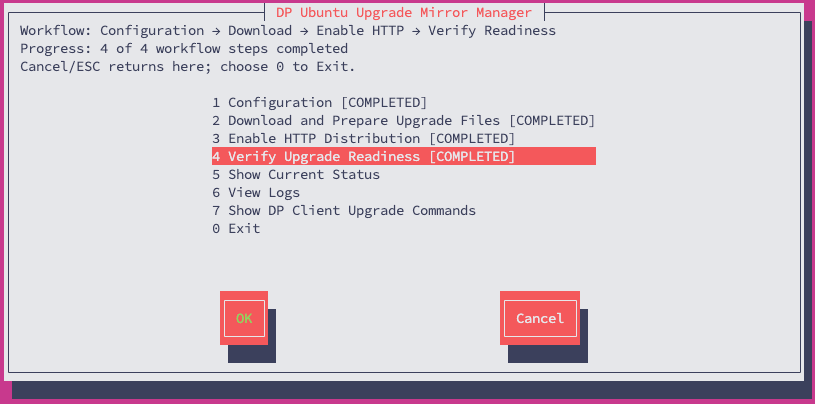
The Mirror Manager displays the workflow status in one place:
```text theme={null}
1 Configuration
2 Download and Prepare Upgrade Files
3 Enable HTTP Distribution
4 Verify Upgrade Readiness
7 Show DP Client Upgrade Commands
```
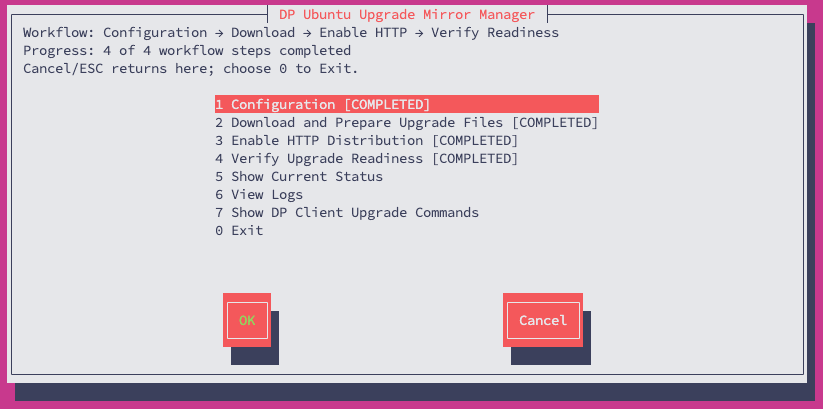 You are ready for the DP side only after the preparation workflow is complete and readiness reports `PASS`.
## Step 3 — Configure the Mirror Server
Open **Menu 1 — Configuration**.
You are ready for the DP side only after the preparation workflow is complete and readiness reports `PASS`.
## Step 3 — Configure the Mirror Server
Open **Menu 1 — Configuration**.
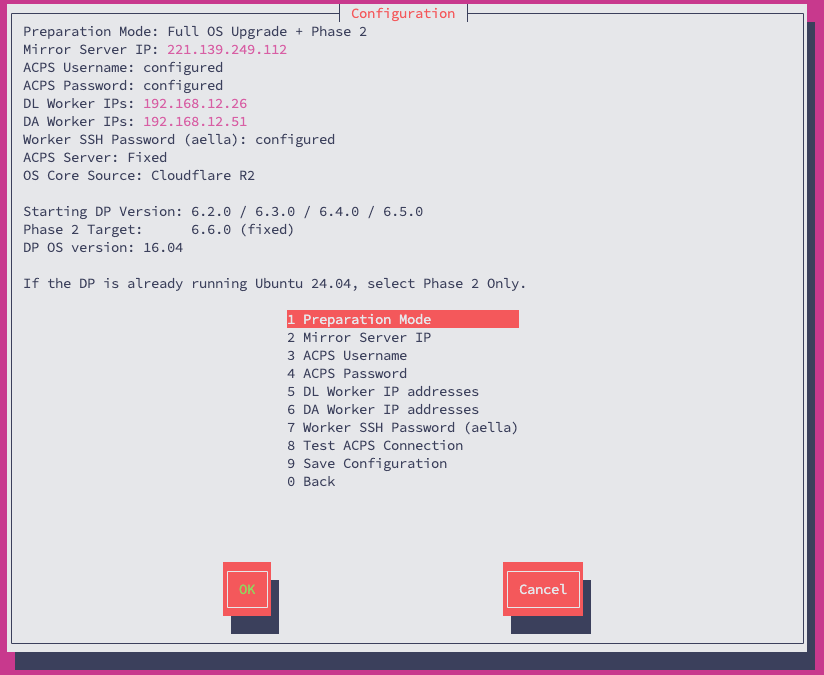 ### 3.1 Select Preparation Mode
Choose:
* **Full OS Upgrade + Phase 2** when the DP still runs Ubuntu 16.04
* **Phase 2 Only** when a supported DP is already on Ubuntu 24.04
### 3.1 Select Preparation Mode
Choose:
* **Full OS Upgrade + Phase 2** when the DP still runs Ubuntu 16.04
* **Phase 2 Only** when a supported DP is already on Ubuntu 24.04
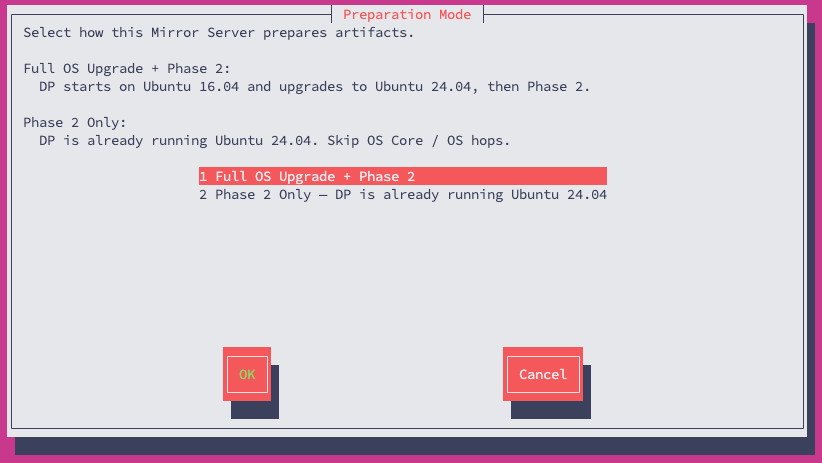 The current Phase 2 target is **DP 6.6.0**.
### 3.2 Confirm the Mirror Server IP
Enter the IPv4 address that the target DPs can actually reach.
The current Phase 2 target is **DP 6.6.0**.
### 3.2 Confirm the Mirror Server IP
Enter the IPv4 address that the target DPs can actually reach.
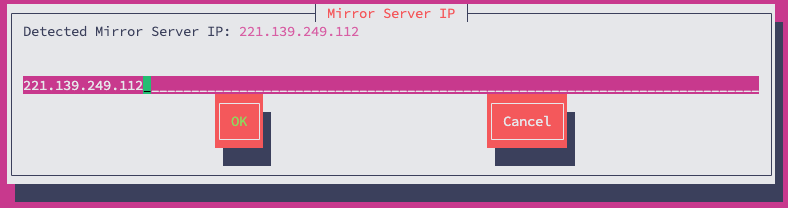 The IP is embedded in generated DP client artifacts. If it changes later, regenerate the workflow outputs before using Menu 7.
### 3.3 Enter ACPS credentials
Enter the ACPS username and password for the deployment.
The IP is embedded in generated DP client artifacts. If it changes later, regenerate the workflow outputs before using Menu 7.
### 3.3 Enter ACPS credentials
Enter the ACPS username and password for the deployment.
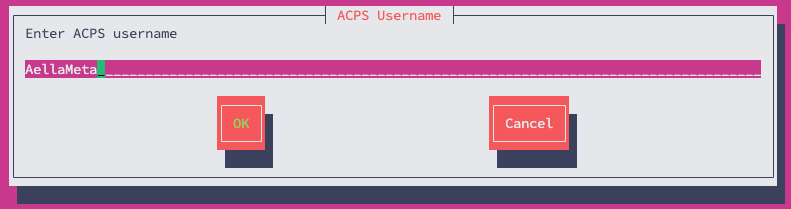
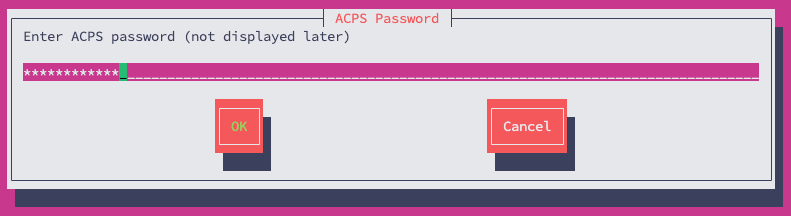 The screenshots are examples. Use the credentials assigned to the current environment and do not publish passwords in tickets or documentation.
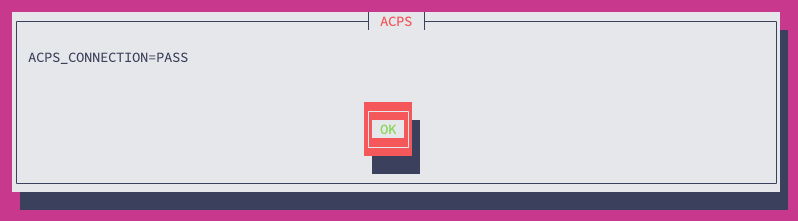
### 3.4 Test ACPS connectivity
Run **Test ACPS Connection**. The expected result is:
```text theme={null}
ACPS_CONNECTION=PASS
```
The screenshots are examples. Use the credentials assigned to the current environment and do not publish passwords in tickets or documentation.
### 3.4 Test ACPS connectivity
Run **Test ACPS Connection**. The expected result is:
```text theme={null}
ACPS_CONNECTION=PASS
```
 ### 3.5 Configure workers for DL/DA clusters
Enter only the worker IPs for each cluster. Do **not** include the master IP in a worker list.
### 3.5 Configure workers for DL/DA clusters
Enter only the worker IPs for each cluster. Do **not** include the master IP in a worker list.
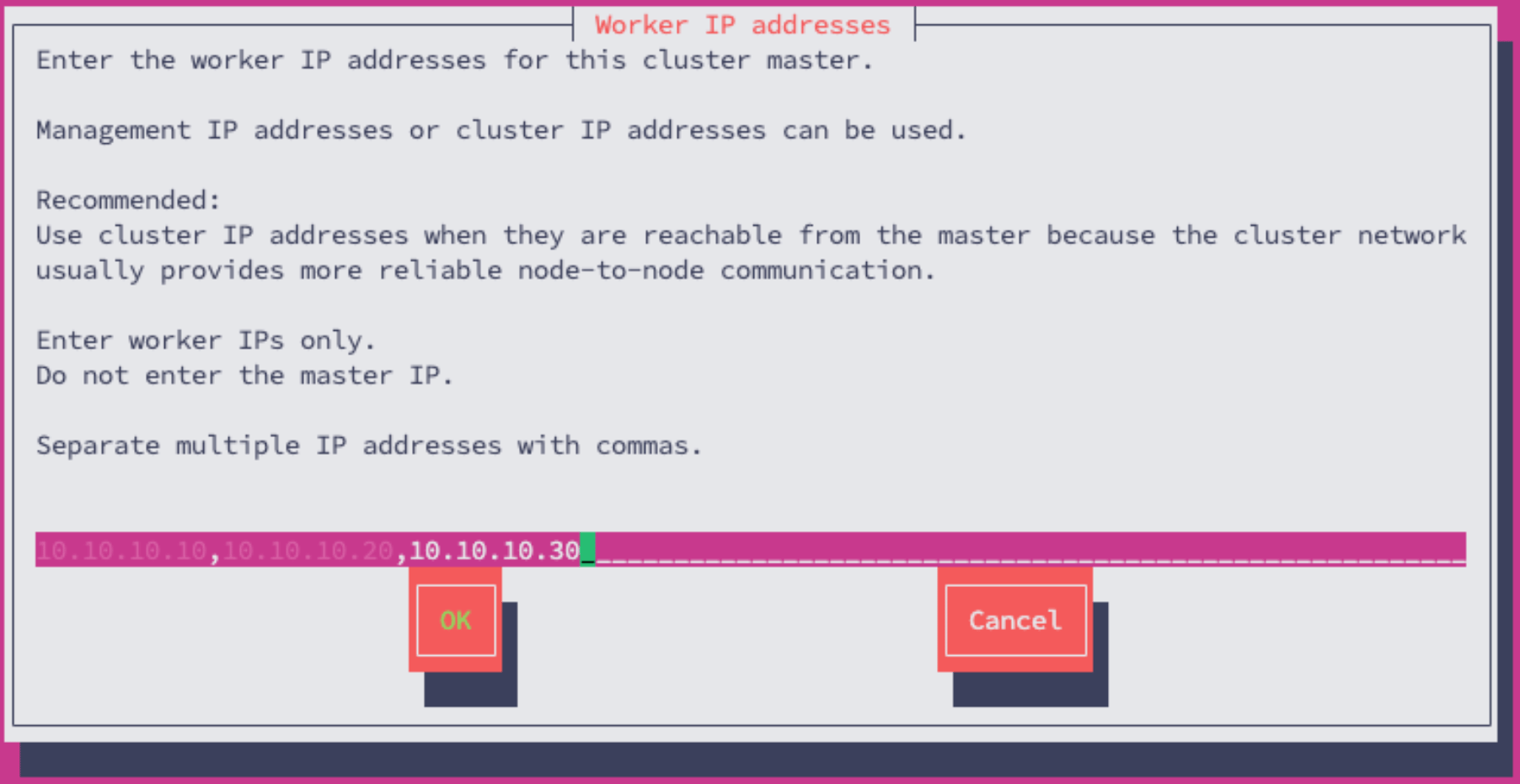 For AIO, single-node, or master-only deployments, leave worker lists empty.
### 3.6 Save Configuration
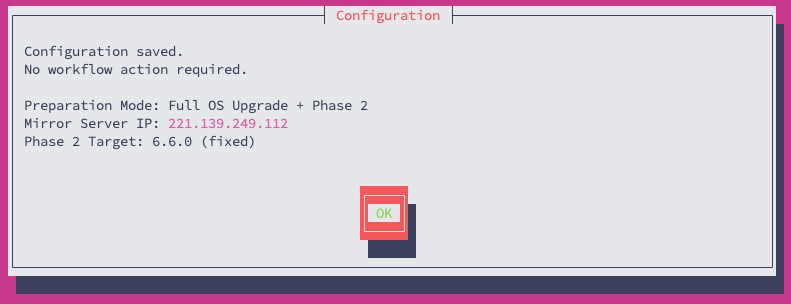
Save the configuration and confirm the selected mode, Mirror Server IP, and current target.
For AIO, single-node, or master-only deployments, leave worker lists empty.
### 3.6 Save Configuration
Save the configuration and confirm the selected mode, Mirror Server IP, and current target.
 ## Step 4 — Download and Prepare Upgrade Files
From the main menu select **Menu 2 — Download and Prepare Upgrade Files**.
## Step 4 — Download and Prepare Upgrade Files
From the main menu select **Menu 2 — Download and Prepare Upgrade Files**.
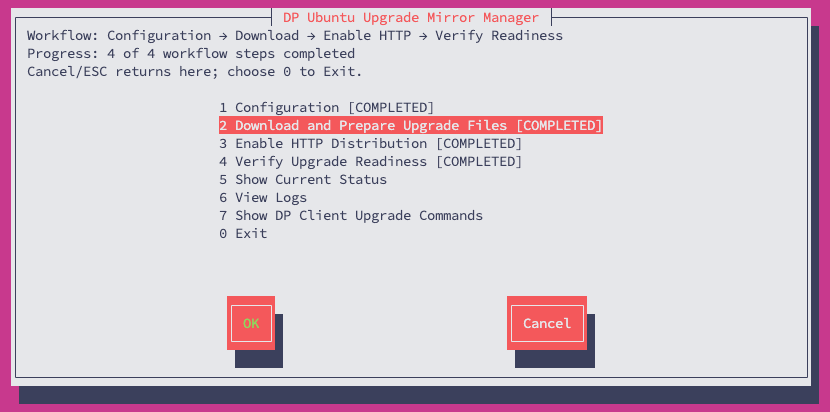 Confirm the requested preparation operation.
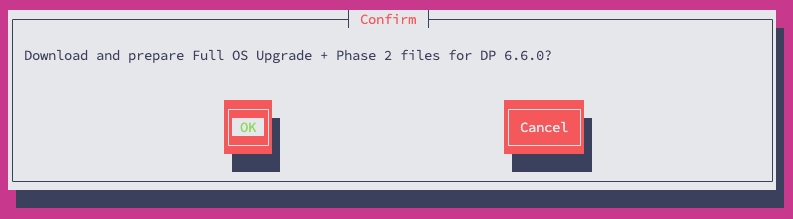 This step can take time. Large downloads, checksum validation, and bundle operations emit progress or heartbeat messages. If an SSH session disconnects, reconnect and reopen Mirror Manager instead of reinstalling.
The current workflow can reuse valid completed files and partial download data. Do not delete `.part` files just to force a restart.
## Step 5 — Enable HTTP Distribution
After Menu 2 completes, select **Menu 3 — Enable HTTP Distribution**.
This step can take time. Large downloads, checksum validation, and bundle operations emit progress or heartbeat messages. If an SSH session disconnects, reconnect and reopen Mirror Manager instead of reinstalling.
The current workflow can reuse valid completed files and partial download data. Do not delete `.part` files just to force a restart.
## Step 5 — Enable HTTP Distribution
After Menu 2 completes, select **Menu 3 — Enable HTTP Distribution**.
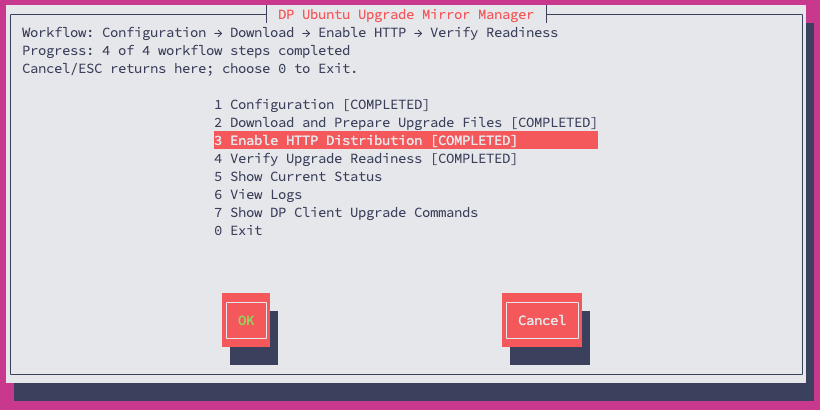 The target DPs consume upgrade material from:
```text theme={null}
http://:80
```
## Step 6 — Verify Upgrade Readiness
Select **Menu 4 — Verify Upgrade Readiness**.
The target DPs consume upgrade material from:
```text theme={null}
http://:80
```
## Step 6 — Verify Upgrade Readiness
Select **Menu 4 — Verify Upgrade Readiness**.
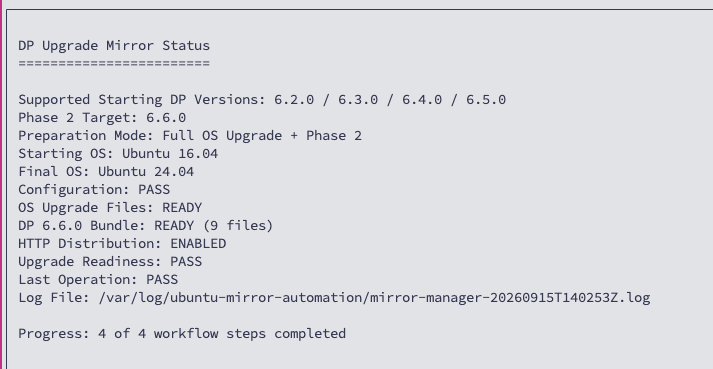
 Then use **Show Current Status** and confirm the current workflow is ready. The expected final state includes:
```text theme={null}
Configuration: PASS
OS Upgrade Files: READY # Full mode
DP 6.6.0 Bundle: READY
HTTP Distribution: ENABLED
Upgrade Readiness: PASS
Progress: 4 of 4 workflow steps completed
```
Then use **Show Current Status** and confirm the current workflow is ready. The expected final state includes:
```text theme={null}
Configuration: PASS
OS Upgrade Files: READY # Full mode
DP 6.6.0 Bundle: READY
HTTP Distribution: ENABLED
Upgrade Readiness: PASS
Progress: 4 of 4 workflow steps completed
```
 **Do not start the DP-side upgrade unless Upgrade Readiness is `PASS`.**
## Step 7 — Generate fresh DP client commands
Open **Menu 7 — Show DP Client Upgrade Commands** only after readiness is `PASS`.
Menu 7 is the authoritative source for environment-specific commands. The output is also saved at:
```text theme={null}
/var/log/ubuntu-mirror-automation/dp-client-upgrade-commands.txt
```
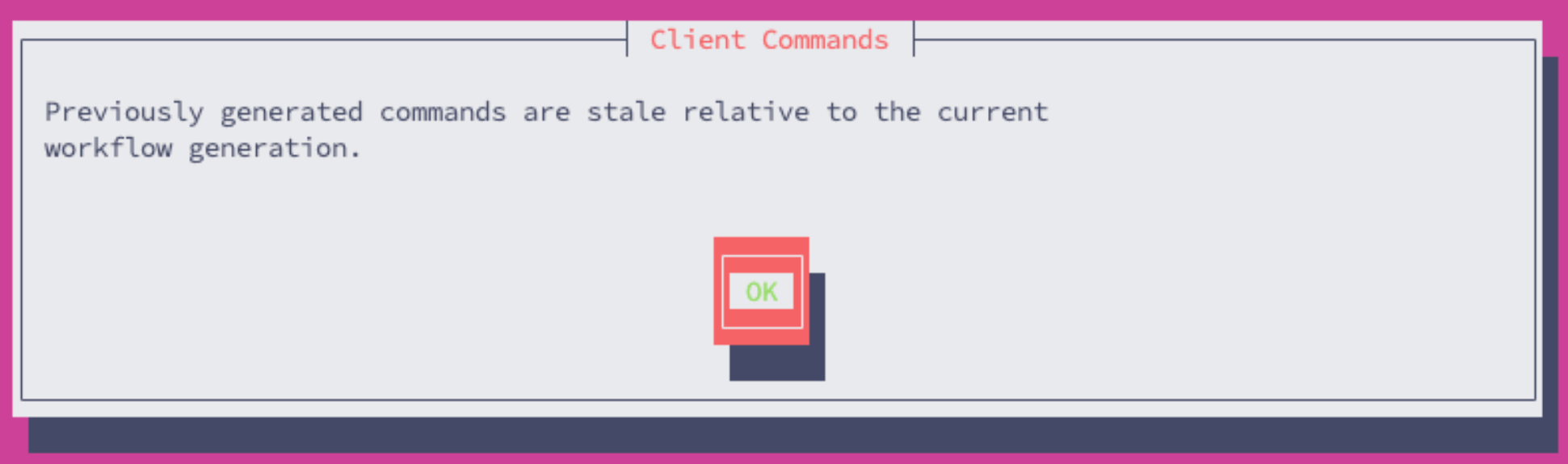
If Mirror Manager reports that previously generated commands are stale, do not reuse them.
**Do not start the DP-side upgrade unless Upgrade Readiness is `PASS`.**
## Step 7 — Generate fresh DP client commands
Open **Menu 7 — Show DP Client Upgrade Commands** only after readiness is `PASS`.
Menu 7 is the authoritative source for environment-specific commands. The output is also saved at:
```text theme={null}
/var/log/ubuntu-mirror-automation/dp-client-upgrade-commands.txt
```
If Mirror Manager reports that previously generated commands are stale, do not reuse them.
 After a Mirror Server IP or relevant configuration change, repeat the required preparation/publish/readiness sequence and generate fresh commands.
> **Version note:** several uploaded screenshots were captured during an earlier 6.5.0 development stage. They are intentionally omitted from this runbook. The active documentation target is **DP 6.6.0**.
## Completion gate
Before proceeding to the DPs, confirm all of the following:
* Configuration saved
* ACPS connection tested successfully
* Download and Prepare completed
* HTTP Distribution enabled
* Upgrade Readiness = `PASS`
* fresh Menu 7 commands generated for the current Mirror Server IP
## Next step
Continue with **[4. DP Offline Ubuntu Upgrade](/runbook/offline-dp-upgrade)**.
After a Mirror Server IP or relevant configuration change, repeat the required preparation/publish/readiness sequence and generate fresh commands.
> **Version note:** several uploaded screenshots were captured during an earlier 6.5.0 development stage. They are intentionally omitted from this runbook. The active documentation target is **DP 6.6.0**.
## Completion gate
Before proceeding to the DPs, confirm all of the following:
* Configuration saved
* ACPS connection tested successfully
* Download and Prepare completed
* HTTP Distribution enabled
* Upgrade Readiness = `PASS`
* fresh Menu 7 commands generated for the current Mirror Server IP
## Next step
Continue with **[4. DP Offline Ubuntu Upgrade](/runbook/offline-dp-upgrade)**.